🔳 CosterGraphics.Systems.OutlineSystem
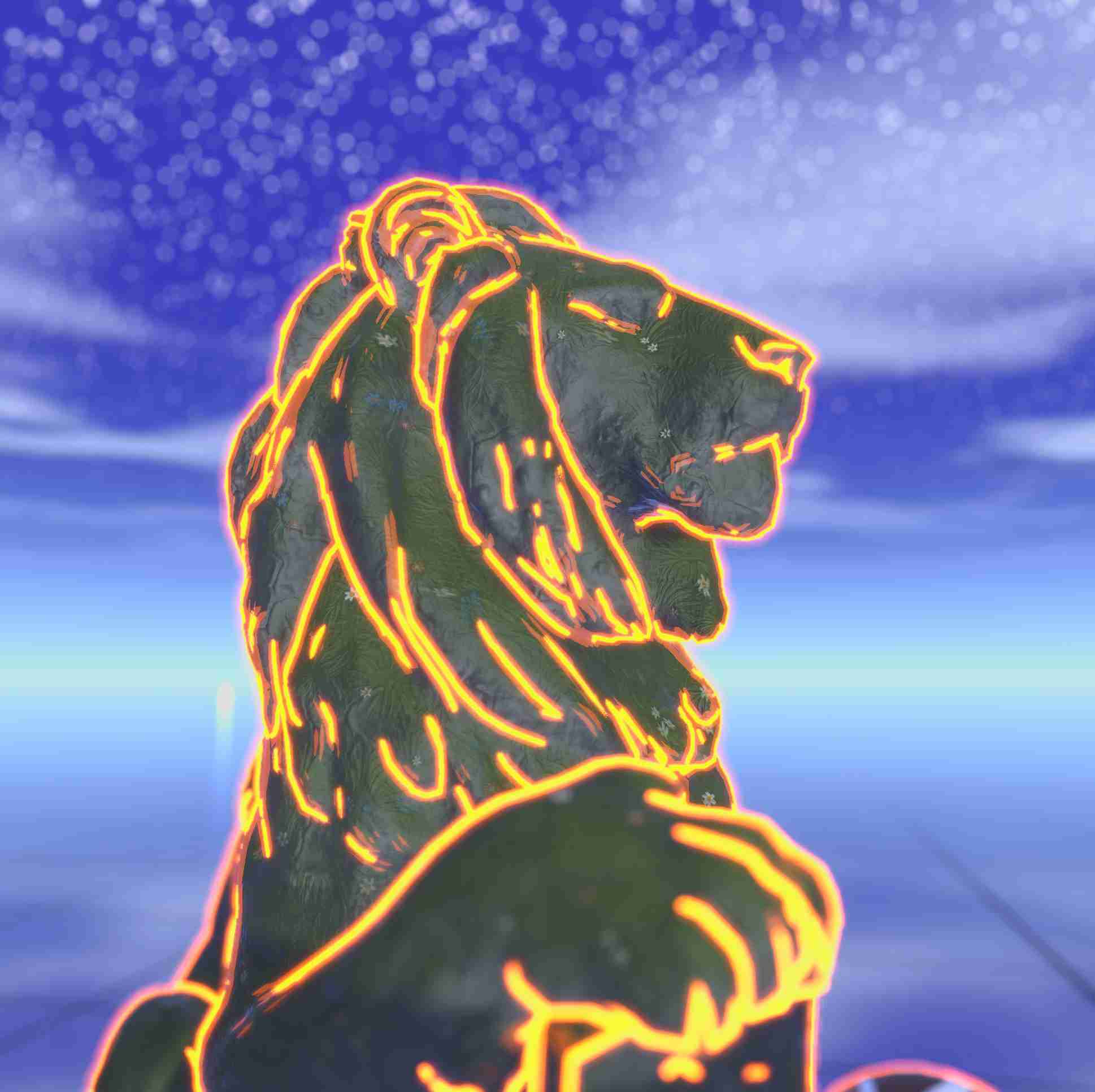
A full-screen, URP-based outline effect for 3D GameObjects using a ScriptableRendererFeature, ScriptableRenderPasses, and the Outline3D component.
This system allows you to draw sharp, controllable outlines around specific objects without requiring custom shaders on the objects themselves and without using 'inverted hull' mesh copies. Outline texture masks are generated in dedicated mask passes and then calculated and composited in screen-space using configurable materials and full-screen Shader Graph shaders.
🌍 Overview
The OutlineSystem consists of three core components:
Outline3D : MonoBehaviour
A MonoBehaviour added to any GameObject you want to outline.
It marks the object for inclusion into the outline mask pass.Outline3DRendererFeature : ScriptableRendererFeature
A custom URP Renderer Feature that:- collects all objects with the
Outline3Dcomponent - renders them to an off-screen mask
- applies a full-screen composite pass to draw the outline
- collects all objects with the
Outline Materials / Shader Graph
A ShaderGraph (e.g.,SG_OutlineComposite) and material used by the renderer feature to generate the final outline.
Common parameters include:- Outline thickness
- Outline color
- Blur/soften
- Edge detection or dilation strength
🔧 Quick Start Guide
Follow these steps to add the OutlineSystem to your URP project.
1️⃣ Add the Renderer Feature to Your URP Renderer
Locate your URP Renderer Data asset file (Project → Settings → Graphics → URP Renderer Data)
Usually named something likeUniversal Render Pipeline Asset.asset.Scroll down to Renderer Features.
Click Add Renderer Feature → select Outline3DRendererFeature.
After adding it, assign:
- Mask Materials
- Composite Material
The feature automatically adds default Mask and Composite materials which can be swapped for custom ones.
The default Composite material is in fact not really an outline but a simple color overlay which is the cheapest of all the Composite shaders since it doesn't require any edge detection. The simples and cheapest actual outline Composite shader is the Outline3D-Composite-Silhouette-Additive Shader Graph shader.
All of the Outlines use the default Mask materials since they're only needed to generate the Texture Masks with that the Composite shaders use to draw different types of outlines to the screen, so for different types of outlines only the Composite shader has to be swapped!
📝 Without assigning both the mask and composite materials, the effect will not run.
2️⃣ Create and Assign the Outline Materials
You need two materials:
Mask Material
Used in the mask pass.
Recommendations:
- ShaderGraph with a simple Unlit Color output
- Always outputs pure white
- Depth writes disabled
- Lighting disabled
Composite Material
Used in the full-screen outline pass.
Assign both of these materials to the renderer feature.
3️⃣ Add the Outline3D Component to GameObjects
Any GameObject with an Outline3D component becomes outline-eligible.
Steps:
- Select a GameObject
- Add Component → Outline3D
- Add the (Mesh) Renderer and/or child Renderers to the Outline3D Renderers list.
- Configure per-object values (if supported):
- Color override
- Thickness override
- Rendering priority
ℹ️
Outline3Ditself does not perform rendering it only registers the Renderers with the Renderer Feature.
4️⃣ Test the Outline in Play Mode
You should now see:
- All objects with
Outline3Drendered into the mask - The composite pass applying an outline around them
If the outline does not appear:
- Ensure materials are assigned
- Check if the mask texture is created
- Ensure the Outline3DRendererFeature executes before post-processing
- Validate filtering and layers
- Confirm your object is visible to the camera
⚠️ About Outlines in the Scene View
If Outlines aren't visible in the Scene view
If you only see the outlines in the Game View but not in the Scene View then make sure that your Universal Render Pipeline Asset's default Renderer is set to the one with the Outline Renderer Feature. Unity let's us override the default Renderer on a per-camera basis so you can have different Renderers for different scenes but the Scene View camera defaults to the Renderer that is set as default!
-Image of the Universal Render Pipeline Asset and its Renderers list- -Image of the selected Renderer of the Main Camera component-
If Outlines are much thicker in the Scene View than in the Game View
Because the outlines are a full-screen effect, depending on the type they may be influenced by the camera near and far plane distances. If the Scene View camera uses a different near and far plane distance as the Game View it will cause a mismatch between outline thickness. By default Unity uses dynamic clip distances by default for the Scene View camera but it can be turned off in the tool bar:
Image of Dynamic clipping settings
To get the same thickness of outlines shown in the Scene View as the Game view simply set the Scene View camera's near and far plane distances to the same values as the Game View camera, for instance to 0.3 - 1000:
Image of camera near-far clip planes compared to scene view.
🧩 System Components
Outline3D (MonoBehaviour)
Marks a GameObject as outline-eligible.
Responsibilities:
- Registers itself with the renderer feature
- Provides access to its Renderers
- Stores per-object outline settings (color, thickness, etc.)
Outline3DURPRendererFeature (ScriptableRendererFeature)
Handles all inspection, rendering and compositing work.
Typical passes:
1. Mask Pass
- Draws all
Outline3Dobjects into a dedicated mask texture - Produces a binary white silhouette
- Optional: also capture depth or normals for improved accuracy
2. Composite Pass
- Full-screen pass
- Samples mask
- Dilates / colors / blends
- Writes result onto camera color buffer
🎨 ShaderGraph — Composite Shader Tips
For best results:
- Use a dilation kernel (e.g., sampling 8 neighbors)
- Multiply dilation by
OutlineThickness - Multiply output color by
OutlineColor - Add result to camera color input
For smoother outlines:
- Add a tiny blur after dilation
- Or apply inner + outer double-pass dilation
📌 Example Usage
    public class Enemy : MonoBehaviour
    {
        private Outline3D outline;

        void Start()
        {
            outline = gameObject.AddComponent<Outline3D>();
            outline.Color = Color.red;
            outline.Thickness = 2f;
        }
    }
📝 Additional Notes
- Outlines are purely a full-screen post-process, so they won’t modify materials or meshes.
- The system supports any number of outlined objects.
- Performance is excellent because the mask renders only simple unlit silhouettes.
- You can extend this system with multiple outline layers, glow effects, or animated outline thickness.
🧩 Depth Bias in the Mask Pass
When generating the mask texture for the outline system, the mask geometry is rendered in a dedicated pass. This pass typically uses LessEqual depth testing so the mask correctly follows the exact visible surfaces of the scene geometry.
However, rendering with LessEqual introduces a subtle but important problem:
❗ Floating-Point Precision (ULP) Issues
Depth buffers store values using quantized floating-point precision. Two fragments that should have the same depth often differ by a few ULPs (Units in the Last Place).
This tiny difference means:
- Pixels that should pass
LessEqualsometimes fail the test - Mask edges show holes, flickering, or thin broken borders
- Outlines become unstable or contain noise
Using Less is not an option because the mask geometry needs to render when depths are exactly equal, not only when strictly closer.
🎯 The Solution: Apply a Small Depth Bias
During the Mask Pass, the renderer applies a tiny depth bias, which nudges the mask geometry slightly toward the camera. This guarantees that its depth values are always marginally smaller than the underlying scene depth, eliminating ULP inconsistencies.
The effect:
- ✔ The mask always passes depth testing
- ✔ Edges become stable and clean
- ✔ No gaps or flickering
- ✔ No dependency on floating-point precision behavior
⚙️ How the Bias Is Applied
URP allows setting a temporary global depth bias:
cmd.SetGlobalDepthBias(slopeBias, depthBias);
A typical configuration:
slopeBias = 0depthBias = -1f(very small offset toward the camera)
After the mask pass completes, the bias is reset:
cmd.SetGlobalDepthBias(0, 0);
🔒 Why This Is Safe
- The bias is scoped only to the mask pass.
- Resetting immediately ensures no effect on:
- Unity’s built-in rendering
- Other renderer features
- Shadows, lighting, or post-processing
- The outline system gains stable, predictable mask rendering with no side effects.
🧠 Summary
Using a tiny depth bias is a deliberate and necessary fix to overcome floating-point limitations in depth testing. It ensures the mask is rendered reliably and produces clean, artifact-free outlines without altering the main rendering pipeline.
Basic, Advanced & Pro Feature Comparison
Outline System Basic Features:
- Outline3D MonoBehaviour Component (
Outline3D) - Color Mask Based Silhouette Outlines
- Depth & Normals Based Contour outlines
- Hybrid Silhouette & Contour Outlines
Outline System Advanced Features:
- Advanced Outline3D MonoBehavour Component (
Outline3DAdv) - Advanced Outline3D Renderer Features (
Outline3DAdvRendererFeature) - Renderer Feature IDs (Render different objects with different types of outlines easily)
- ObjectID Based Outlines
- Advanced Edge Detection Kernel Based Outlines (Cross, Gaussian, Laplacian, Sobel, Scharr)
- Comes with Shader Graph Sub-Graphs for each of the kernels to create your own Composite shader with
- Advanced depth masked outline shaders using depth tested and non depth tested masks
Outline System Pro Features:
- OutlineFeature Profile Scriptable Objects System (Replaces Feature IDs?)
- Ray Marched Distance Field Based Outlines
- Other pro stuff